
Are you still wrestling with complex codings and HTML to uplift the functionality of your WordPress site? It’s time to play “Drag-n-Drop” game with powerpack Beaver Builder add-ons!
The 55+ custom modules, 200+ section templates and 150+ page templates making Beaver Builder a top-rated choice for Wordpress website development. With powerpack Beaver Builder add-ons, customizing the WordPress theme has become much easier and faster than ever before.
In 2015, the time when we used to build child themes using a popular well-coded framework, called “Genesis”. It worked well for us and offering other features, which are easy to learn and implement. While Genesis continues to be a stunning WordPress website framework, but still, we kept hearing great things about Beaver’s front-end page builder.
Fast-forward to 2019, we are now a massive fan of Beaver Builder! It turns out to be a well-managed page builder that allows developing more creative designs, although under a limited budget.
People who are into custom WordPress plugin development can easily understand the importance of this plugin, but what if you are new to Beaver Builder? Don’t stress! We are here to take all of the worries and stress from your shoulder and explain to you everything in a layman language…
Beaver Builder is one of the feature-rich WordPress page builders that you can trust with your business. Whether you are a novice or a professional, you can easily take control of your WordPress Site with Beaver Builder. It ensures you flexible drag-n-Drop flexibility to tailor the design of your website and eliminate the wrestling with confusing shortcodes. With Beaver Builder, building an attractive, professional and fully-functional WordPress page is as simple as dragging and dropping.
Let’s take a deep dive into the statistics of Beaver Builder users to understand the increasing hype of this power-pack CMS.
- According to Trends.BuiltWith, today total number of websites using Beaver Builder today, 259,344, out of which 478 sites are in India.
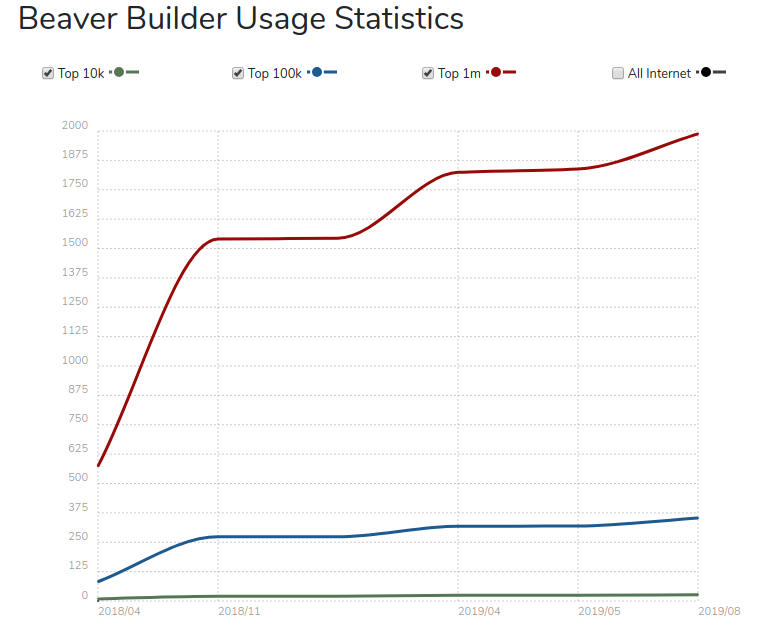
• Beaver Builder Awarded as the 11th most popular in the Top 100k sites in WordPress Theme category.
• Increasing Beaver Builder market share.

Now the next question must be popped up in your mind, what exactly makes Beaver Builder Plugin so accessible and favorable?
Beaver Builder Review In a Nutshell
Users love Beaver Builder plugins! Don’t take it just as words as here are the few testimonials of the experts…
- Beaver Builder is by far the best option in the market. It comes with pre-made templates to help you get started. The ability to customize every little detail makes it a perfect solution for ALL users. By Syed Balkhi
- It’s more than just your typical WordPress plugin. It’s a framework. It’s an engine of sorts; a complete toolset that adds ease to WordPress website development. By WPKube
- More than any other single plugin, Beaver Builder has changed how I do my work as a WordPress developer and made good front-end layout building a reality. Thoughtfully built, feature-rich, and above all reliable, Beaver Builder is our favorite page builder in WordPress. Beaver Builder is solidly built enough to use without fear on both personal and client projects. By Fred Meyer
Apart from these testimonials, here’s why you need to use the Beaver Builder plugin…
Now you can create great-looking content in WordPress as hassle-free as possible. With Beaver Builder:
- You can tailor the look of the pages and posts by dragging and dropping elements on the canvas,
- Your website designing can be done within a few clicks. You can eliminate writing codes, and no HMTL knowledge is required,
- You can make changes in your current WordPress theme,
- You can see the instant results of your work.
Sounds cool, Right!
Okay, let’s kick-off this Beaver Builder review by having a more in-depth look into the individual plugins that uplift the functionality and modules to the WordPress Site.
Beaver Builder Ultimate Add-Ons for 2019
Most of these plugins come with a high-quality advanced set of modules and unmatched support you’ll love to integrate. So, let’s begin with the list of Beaver builder add-ons that help you develop a more functional WordPress Website.
1. Beaver Themer
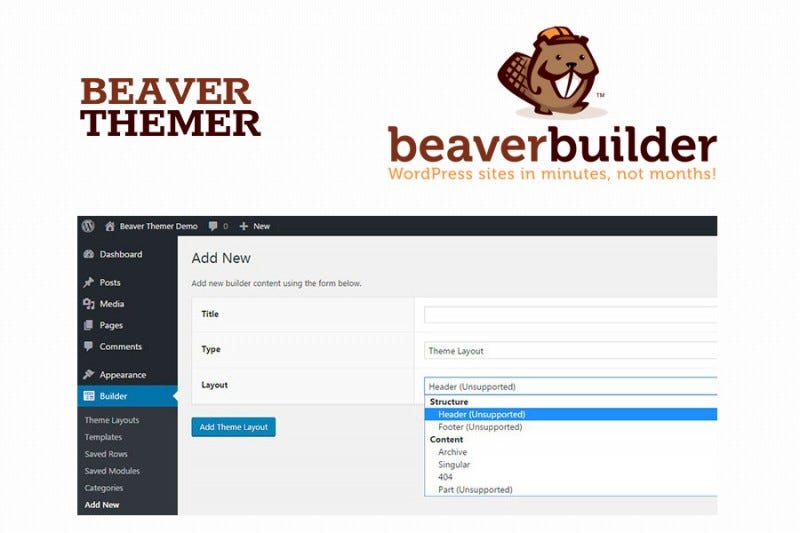
If you are the one who wants to make alterations in the existing layouts powered by the WordPress theme, Beaver Themer is the perfect add-on for you. It utilizes the Beaver Builder plugin that enables you to make modifications in the existing WP Theme.
The extensive features of Beaver Themer enable you to go far above and beyond and allow you to create layouts for the content area of pages and posts. With Beaver Themer you can construct various aspects of the website page including Header, Footer, Archive Pages, Single Posts, Search Posts, 404 error pages and more.
Using Beaver Builder and Beaver Themer together lets you have full control over every aspect of the webpage.
2. Pre-Made Templates

For many, Wordpress Theme Development is the biggest challenge. If you don’t want to work on your page from scratch, you can accelerate the entire development process with Beaver Builder’s pre-made templates.
While accessing the Beaver Builder’s pre-made templates, you will find two tabs labeled as “Templates” and “Saved”.
“Saved” tab is useful when you have your personal library of favorite designs, and you are using Beaver Builder for a while. This is where you can store your own saved rows, columns and content modules.
“Templates”, this is where you can find more than 50 pre-designed page designs which are just one click away on Beaver Builder. Importing these templates is easy and straightforward, as it only takes one click to customize the design.
3. Orbit Fox
Orbit Fox is a free WordPress plugin and most commonly used by the developers these days. Since it provides three extra modules for Beaver Builder including Post Grid, Pricing table, Services, you can easily enhance the functionality of the site with a single add-on. Once you install the plugin, you can easily activate all three modules by merely following a few steps:
- Go to the Beaver Builder settings in your dashboard,
- Click on modules,
- Click on the add-ons that appeared under the Orbit Fox Tag.
These modules are beneficial, especially when you are accessing it to build an eCommerce Site. Apart from checking Pricing Table, Services and Post Grid, you can notice the uptime/downtime of your site. Also, integrating social sharing icons, adding Google Analytics, import free stock photos, installing free ready-made templates can be done flawlessly with this plugin.
4. Ultimate Add-ons For Beaver Builder

Ultimate Add-ons is a unique plugin that is developed by the pioneers of page Builder add-ons. It is a promising Beaver Builder add-on with over 55+ advanced modules and 300+ page and section templates to uplift your page development experience.
With a prime focus on customer satisfaction and website performance, the Ultimate Add-ons for Beaver Builder offers a complete blend of creative features developed with the most optimized code.
From row separators, info-boxes, hotspots on images to a faster loading video module, Ultimate Add-ons for Beaver Builder has everything in it.
5. Header Footer For Beaver Builder
It is a free plugin that brings the opportunity to add your header and footer via Beaver Builder Editor. Whether creating a header or footer, you need to design a new page like you always do and save it in a draft.
The only down-side of this plugin is that it doesn’t support all the themes. There are only limited compatible themes, including.
- Astra,
- Beaver Builder Theme,
- Primer,
- Genesis,
- GeneratePress
6. WooPack Beaver Add-ons

WooPack Beaver Add-on is a premium plugin that you can install from the WooCommerce store. You may need to purchase this plugin, but it helps you bring the power of Beaver Builder to your WordPress Website. It provides six modules, and each module comes up with multiple layouts and variations. Modules are as mentioned below:
- Single Product
- Product Grid
- Product Slider
- Checkout Page
- Cart Page Styling
- Add to Cart Button
7. Toolbox
A toolbox is the only add-on that connects you with custom fields into Beaver Builder and Beaver Themer. This add-on best suits those who are looking to increase their design productivity and turn out to be the most valuable developers.
The subscription of the Toolbox allows you to install and use the plugin on both client and personal sites.
8. Re-Position Sidebar Plugin
Quit to complicated codings to customize the position of the sidebar on your website page. Using the Re-position Sidebar Plugin, you can quickly re-position or delete the location of your sidebar entirely from selected pages. It is handy when using the theme without a sidebar or a theme that is entirely incompatible with one.
9. Pods
Today, thousands of users depend on Pods Beaver Builder Add-on to craft some trendy content such as Custom Taxonomies, User Profiles, Custom Post Types, etc with ease. With this plugin, you can flawlessly manage all the custom content in one place. If combined with Beaver Themer, you can design dynamic websites with just dragging and dropping features.
You can leverage this plugin for free as Pods available on the WordPress Repository.
10. Crafty Beaver Custom Modules
Crafty Beaver Custom Modules, a demanding plugin to take your WordPress theme customization to the next level. Crafty Beaver provides you with 13 modules that expand the functionality of your Website. Crafty Beaver Custom Modules offers the option to consult with a developer to create custom add-ons and help you bring your dream website to life.
11. Timeline Module for Beaver Builder

Did you ever imagine to develop the beautiful timelines directly on the website? This Beaver Builder add-on will let you turn your imaginations into reality and helps you develop a beautiful Timelines on your website without any hassle.
That’s not all! This add-on includes:
- Animation options
- Customize dates, selector, connector
- Several typography options
- Animation options
- Show and hide options for the date
12. FacetWP
FacetWP is another plugin that can seamlessly be integrated fully with Beaver Builder. FacetWP not only enhances your filtering and faceted search compatibilities but also enables you to manage your posts, listings, shop and much more.
Additional Features of FacetWP are:
- Templates,
- Tons of UI Choices,
- Pagination Shortcodes
- Other Add-ons
13. Wallace Inline
Wallace Inline is entirely a standalone editing interface that offers you the best ways to edit your WordPress Website. You can manage the client’s site entirely depending on the settings of this editing plugin. It ensures fast text and image editing, custom links and icons, lockdown modules to prevent editing and advanced integrations for better control.
14. Dashboard Welcome For Beaver Builder

Want to create an appealing welcome page in your WordPress dashboard? This Beaver Builder plugin is beneficial for developers who wish to build websites for their clients and want to get a customized experience when they login to the WordPress Backend. You can customize the look and feel of the dashboard welcome page with this plugin.
15. WPD Beaver Popups
Get complete control over your website’s pop-ups with WPD Beaver Pop-Ups add-on. When you install this add-on, you also get full access to set a limit of pop-ups. From managing entrance and exit animations, box-shadow, contact form pop-up and so on, everything is possible with Beaver Builder add-on. You can create any pop-ups easily with the help of WPD.
Wrapping Up!
Hopefully, you enjoyed reading this post! These are our best picks for the Beaver Builder add-ons to extend the functionality and module of the website. From editing content to adding timelines directly to the website, from styling the design to manage the content on the site, you can easily extend your existing Beaver Builder interface further with all these add-ons.
You can hire a WordPress plugin development company to utilize one or more of these add-ons to get a more comprehensive online design set to create an even stronger, practical and functional website.
Further, I would love to hear about your experience with using Beaver Builder add-ons! Also, if you have any other handy plugins, you can share it below!

