Showing posts with label Wordpress Plugin Development. Show all posts

Wednesday, 13 November 2019

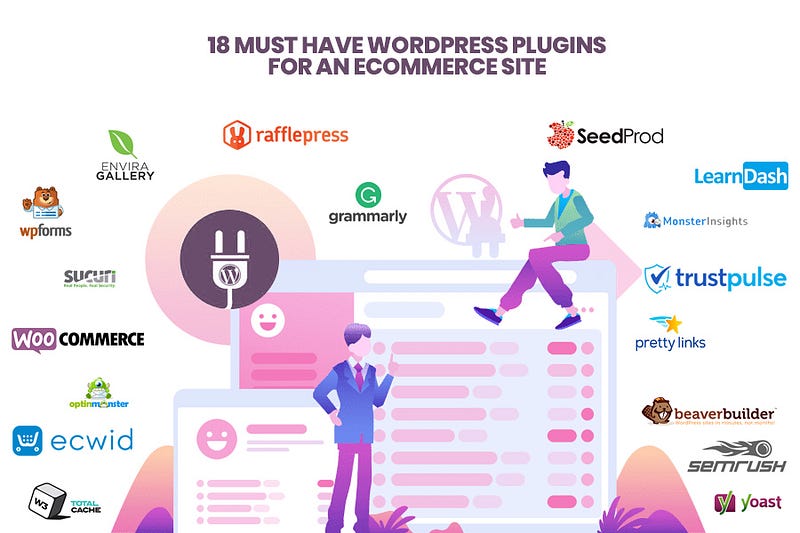
18 Must-Have WordPress Plugins For An eCommerce Site


Started from the bottom, here they are!
Originally started as a blogging tool, WordPress has come a long way from the journey it began. The platform now runs pretty much the whole internet, and there is no denying to that!

With a large share of 34% on the website market, this robust CMS fulfills every need and goal of its customers. Constituting about 40,000 plugins, it is one of the biggest free plugin platforms on the web.

The best thing about WordPress — its ability to customize and enhance the performance of the website using these plugins.

WordPress is indeed an all-rounder solution. It is not only limited to the choice of bloggers, but it has opened up its horizons to e-commerce websites too. Granting the customers with the power to stand out of the crowd, the CMS provides potent and responsive plugins.

Having the correct set of plugins serves the user to grow their online business. Thus, here are some of the essential WordPress eCommerce plugins that an e-commerce website should consist of to bring out the best from their websites.

The Best WordPress Plugins

To help you with the best WordPress eCommerce plugin, here is a customized list that would help you to navigate and provide a rough idea.
13. SEMrush
14. Sucuri
17. Ecwid
So if you’ve been questioning yourself: What are the top WordPress plugins, then here is the list.

1. WooCommerce



WooCommerce is, by far, one of the most popular and best e-commerce plugin for WordPress. If you are seeking to make those greens online, then this plugin would serve your needs and goals. The user is granted the advantage to create a highly customizable e-commerce store, and sell any physical and digital goods. The plugins allow the user to create recurring subscriptions, paid appointments, memberships, and many other things.

Advantages of using WooCommerce

  • The plugin works seamlessly with all the themes of WordPress
  • It enables and allows the integration of affiliated products from the other stores
  • The plugin is considered to be one of the most venerable shopping cart systems
  • It enables the integration of secure payment methods with the integration of tax options too

2. Yoast SEO



Now that you have an e-commerce website, you would want it to rank on the Google page. Right? There is no apprehension that the search engine is reported as a significant source of traffic for the websites out there. Thus, for the very soul purpose for fetching traffic on your website, Yoast SEO is considered as one of the best WordPress plugins for eCommerce that is in existence. The plugin compels the user to choose and focus on keywords while they are publishing their content online; that way, the users are ensured that they use the right one on the page.

Advantages of using Yoast SEO

  • It provides users with faster indexing and accurate results.
  • Helps the user to analyze the readability of the article
  • Lets the user achieve and set canonical URLs
  • It suggests the user with internal linking for better ranking on the page
  • Helps to redirect old URLs to the new ones

3. Beaver Builder



57% of internet users say that they would not recommend a business with a poorly designed website. Thus, providing us with the fact that the appearance and layout of an e-commerce website constitute mainly when it comes to promoting your business. Beaver Builder one of those plugins that are considered to be one of the best drag and drop builder plugins. It allows users to construct page templates and custom landing pages easily. This WordPress e-commerce plugin is best for the users that want to make their website attractive and appealing.

Advantages of using Beaver Builder

  • It provides the user with many built-in layouts
  • The plugin supports multi-site network
  • Grants the users with customizable header, footer, and sidebar
  • Works well with most of the WordPress themes
  • The premium plugin provides the users with advanced modules and templates

4. W3 total cache


According to Kissmetric's report, about 47% of customers expect a website to load in 2 seconds or less. This means that if your website is taking more than the expected times, you are likely to lose customers. Believe it or not, but better performance has a direct impact on the user experience and the traffic. One of those WordPress e-commerce plugins that contribute highly in the field of speed and load time is W3 total cache. It is known for supporting content delivery and hosting for the companies. One of the best ways to enhance the site speed, W3 total cache plugin is one of its kind.

Advantages of using W3 total cache

  • A larger number of customization is available for free, and the plugin is known for supporting minification, CDN and GZIP
  • Provides instant page view: browser caching
  • Helps in the optimization of progressive rendering
  • It helps in sustaining high traffic periods.

5. WP Mail SMTP



WP Mail SMTP is a WordPress store plugins that grants the user with authority to send emails and integrates subscribers easily. This free plugin transacts email plugins to help users with emails. IT tends to reconfigure wp_mail() PHP function to utilize proper SMTP provider. This platform brings together the SMTP providers so that the user doesn’t have to separate plugins for providers.

Advantages of using WP Mail SMTP

  • It helps with all the not sending email issues
  • Helps in sending bulk messages easily
  • Assists with the transitional emails
  • Helps in ensuring that emails are delivered on time
  • Helps with the native integration of SMTP service

6. WP Forms



If you are into e-commerce business where everything depends on customer satisfaction and their needs, you would require a plugin that would help you the business owners to connect with their customers. WP Forms is one such plugin. The plugin lets you set up a contact form quickly with the help of the beginner-friendly interface.
Not only this, but the plugin consists of features like “drag and drop” where it makes it easy for the user to create contact forms, order forms, payment forms, e-mail forms, and many other things.

Advantages of using WP Forms

  • Grants the users with easy drag and drop form builder
  • Helps in customizing form fields
  • It consists of many ready to made templates
  • Helps in integrating popular e-mail marketing services
  • Helps in file uploads and blog post submission
  • Helps in protecting and filtering spam businesses

7. RafflePress


Considered as one of the most prominent e-commerce plugins for WordPress for giveaways, RafflePress is a must for every user out there. It allows the users to set up viral giveaways on the blog that you wish to promote and grab traffic from. It will enable users to integrate social media platforms so that they can grow with the help of viral sharing. Managing a viral giveaway on your blog is described as a viral tactic to help the website owner with the traffic and e-mail list. This plugin asks the visitors to earn the entries with the help of following the pages on Facebook, Twitter, Instagram, etc.

Advantages of using RafflePress

  • It provides users with drag and drops giveaway builders.
  • The plugin grants the users with pre-built giveaway templates.
  • It helps users with powerful social media integration
  • Optimizes giveaway landing pages
  • Helps in advanced tracking and retargeting

8. Pretty Links



The more reliable your affiliate links and website appears the more your URLs are shared. Therefore, if you are looking for a plugin that contributes to affiliate marketing, then pretty links are the hero for you. This Wordpress Plugin Development tool provides the user with tracks clicks from the email links and social media. The plugin hits on the URL that the user tends to create. It then offers a full report on where the hit is from. Not only this but the plugin also helps the users to shorten up the link size to help them memorize it.

Advantages of using Pretty Links

  • It helps to create an affiliate link and is useful for those who are into affiliate marketing.
  • Provides with shareable links for emails and postcards
  • Helps to customize the URLs

9. MonsterInsights Lite



When it comes to custom WordPress plugin development, this tool provides the user with a simple way to connect the WordPress website to the google analytics account. With the help of this account, the user can witness how website visitors find your site, and how long they are there. The user can use the plugin to connect to the blog with Goggle analytics in one click. If you wish to monitor your blog traffic and other stats that are important, then nothing is better than the usage of this plugin.

Advantages of using MonsterInsights Lite

  • It provides the user with real-time stats for blog and the traffic
  • It is one of the most popular post tracking plugins
  • Its provides the user with ads tracking
  • Provides the user with custom WordPress dashboard reports
  • Provides the user with file download tracking

10. OptinMonster



OptinMonster is considered as one of the best lead generating and conversion optimization plugin. This WordPress plugin service allows the user to create beautiful opt-in forms that tend to convert the abandoning blog visitors into the structure of subscribers. Therefore turning the site visitors ( who were headed to abandon your website) into email subscribes, this plugin is a must-have. It also provides the user with a personalized campaign that is based on the customer's location. Thus, making it important for the visitors to subscribe to the email list.

Advantages of using OptinMonster

  • The plugin helps the user to drag and drop option builder
  • It tends to multiply campaigns for actionable marketing
  • It provides seamless integration with popular services.
  • Provides with detailed insights ti improve the campaign
  • Has browser extensions to work with all the apps

11. TrustPulse


TrustPulse is one of the most used and considered to be the best social proof plugin. It tends to showcase the real-time activity of the blog to the new visitors. WordPress plugin development company uses TrustPulse for redirecting to the landing pages with the help of notifications. With the help of this plugin, it makes it easy for the user to customize things like color, messages, images, etc. Not only this, but the plugin allows the user to stream recent activities as well as provide on fire campaigns that help the website owners to keep track of the action there customers are performing.

Advantages of using TrustPulse

  • Helps the user to track real-time activities
  • Helps the website owner to show that how many people have taken action on your blog
  • Provides the users with flexible design options
  • Grants the user with flexible design options
  • Provides the user with advanced targeting rules
  • Helps in measuring track and measure insights

12. Grammarly


For a smooth Wordpress Website Development, this plugin is a must. It is a browser extension that operates well with WordPress blog. It allows the users to improve the content by letting them know about there mistakes and spellings on the content that they created for there website. As a blogger, you tend to encounter a lot of hats, it might be related to top plagiarism, or you might need some proofreading — Grammarly helps the user to use these features and make the most out of this plugin.

Advantages of using Grammarly

  • Operates seamlessly with WordPress
  • Helps to correct the punctuation in the sentence
  • Helps to fix the spelling in a write-up
  • Suggests a better alternative to the words

13. SEMrush


This all in one marketing plugin for digital professionals and Wordpress Web Development, as well as the business owners, helps the user to improve their SEO, traffic, social media post, PR strategy, and other marketing-related activities. The plugin also helps you to gather competitive intelligence so that the user can outrank and dominate the market.
Not only this, but the plugin also supports the user to do keyword research, audits the backlinks, keeps a check on the competitors, strategy analysis and many more.

Advantages of using SEMrush

  • Regarded as one of the most powerful keyword research plugins, SEMrush is the right tool for SEO.
  • Helps the user to identify new keyword opportunity
  • Helps the user to track past and current rankings
  • Doesn’t allow you to lose out on your existing traffic
  • Helps user to find better advertising technology

14. Sucuri


This plugin is one of the supreme leaders in terms of security. It tends to block attacks before they even try to reach the server-side. Not only this, but Wordpress Customization related to security is possible only with the help of this plugin. This means that the website which you are using would always be safe and secure. The plugin tends to monitor the site after every 3 hours to check it with the malware, malicious in frames, link injections, and many such things. The user is also helped with the understanding of whether their website has been blacklisted or not.

Advantages of using Sucuri

  • Helps in unlimited malware and hack related cleanups
  • Consists of a comprehensive five steps process to ensure that the website is protected and secure
  • The plugin helps with website performance as well. It tends to keep its feature-packed plugin lightweight so that it does not slow down the site’s resources and loading time.
  • It helps the user to check DDoS attacks, threats so that the website data is safe and secure

15. Envira Gallery


Envira Gallery is one of those platforms that tend to be an excellent WordPress image gallery plugin. It enables the user to construct image galleries and photo albums on the WordPress blog instantly. For the users who are running a photography blog or other image-related website that is heavy — this plugin is for you. And if you are seeking for a plugin that tends to boost up the website skills and also help with the displaying up of images beautifully, then no other plugin would suit you the best.

Advantages of using Envira Gallery

  • Helps to drag and drop the image gallery builder
  • It consists of dozens of pre-built gallery template
  • Provides the users with a variety of powerful and advanced add-ons
  • It has super-sized lightbox images
  • The plugin tends to support video galleries as well
  • It is built-in lazy loading
  • It helps to add easy watermarking on the images

16. LearnDash



LearnDash is considered to be one of the best LMS plugins that construct and sell online courses from your WordPress website. It consists of a drag and drops course builder that allows the user to quickly add lessons, assignments and various other things to build a course. The user who wants to make a reasonable sum with the help of online courses should use this plugin on their website.

Advantages of Using LearnDash

  • It comes with a visual drag and drops course builder that allows you to build multi-level courses, and then add lessons, assignments as well as quizzes.
  • It also provides a full-fledged certification to the students that tend to complete the course
  • It consists of a timer that helps the user to prevent them from skipping the classes
  • One of the coolest parts of utilizing LearnDash is that it includes a lot of monetization options that involve the one-time purchase, recurring membership, and course bundles
  • The plugin tends to support multiple payment gateways as well like Stripe and Paypal.

17. Ecwid


When it comes to purchasing the online store, having a professional and easy checkout page helps in improving the performance of the website. This plugin tends to help the user in this scenario. The plugins help the user to create relatively straightforward and simple plugins that include all the necessary features you would need to construct the e-commerce page. Not only this, but the platform tends to support over 40 international payment gateway options also.

Advantages of using Ecwid

  • The plugin provides the user with automatic updates and secure checkouts
  • The plugin has a smooth learning curve, thus provides the user with ease of installation
  • The plugin helps the user to optimize their online store for all the operating system and devices
  • The plugin offers the user with POS functionality that allows the user to accept payment online using a tablet and an Apple/Android mobile phone

18. SeedProd



SeedProd is considered to be one of the best WordPress maintenance and coming soon page plugin that helps in collecting leads and growing up of followers even when the website is not available. Suppose your website is under construction, and you want to create a landing page for your customers to inform them. Thus, you can utilize the same plugin to create a beautiful page that would also help them in integrating other third-party platforms.

Advantages of using SeedProd

  • The plugin is highly useful for those people who have just started up with their website and wish to have leads and traffic on the website
  • The plugin helps you to gather email addresses while the user is working on the site.
  • The plugin helps the user to jump start on the ranking on the Google page.

In the Nutshell

And here you have it! Now you have a whole idea about the plugins you need and the useful ones. These plugins would arm your website on the battlefield of being no.one among your competitors. Therefore, your website now would not only be performing well but would bring you revenue too.
We expect that this write-up helps you with all the necessary plugin that you have been searching for. If you have any issues or problems regarding a similar topic, then you can leave a comment on the comment section below; our professionals and Wordpress Expert would try to solve the same. They would help you to provide all the necessary solutions.

Wednesday, 6 November 2019

How to Export and Import Gutenberg Reusable Blocks to WordPress in a simple way?


Unless you are not living under the caves, you must be familiar with this big news. The launch of Wordpress block editor aka Gutenberg Block has already taken over the WordPress industry by storm. Now the question is, Why this brand new Gutenberg post editor is leaving a strong impression on the WordPress web development Community?


Well, the real game has begun with the introduction of WordPress 5.0 Version! With each passing year, WordPress Community gears up to surprise the developers with more and more new innovative and exciting things. In this context, last year marked as a great revolutionary with the appearance of Gutenberg in the history of WordPress.

As soon as you switch to a 0.5 version of WordPress, you will get the opportunity to create better content with a block-based editing platform.

HOW? Let’s Understand their Goals.

The Gutenberg reusable blocks are entirely different from what developers were using for years. It is not wrong to say, that reusable blocks are adding all-new dimensions to the editing procedures. It makes the process more straightforward and enjoyable to add rich content to WordPress.

While many public communities publish thousands of articles, trying to explain, illustrated and conveyed the basic principles of Gutenberg. But what if you are a novice? Don’t stress! Quell your worries here as this blog has explained a few simple steps to export and import Gutenberg blocks to WordPress quickly.

In this blog, we will dive deep into the concept and discuss the basics, along with some pros and cons of the new block editor platform of WordPress 0.5.
  • What is Gutenberg Block?
  • More Than Just an Editor
  • How to Install it?
  • Pros of Gutenberg Editor
  • Cons of Gutenberg Editor

Many people who have been around and in the WordPress Development Services community, may already get their hands on the advanced editing feature of Wordpress 0.5. However, what if you are a beginner or not able to differentiate between the classic and Gutenberg block? Let me explain to you what exactly is Gutenberg Block.


“Like other content editor tools, the new Gutenberg is a fully block-based Wordpress editor where every piece of content you add is simply a block. The best feature of the reusable Gutenberg block is, you can customize every single block style and re-use it to develop content in the future quickly. The additional feature of Gutenberg WordPress of reusable blocks is beneficial for feedback forms, banner ads, call-to-action-buttons, etc. “

Now, how many of you think that Gutenberg is just an editing tool? Well, the matter of the fact is, is it more than just an editor.

Let’s understand how?
Reusable Editor Block is Not Just an Editor
Gutenberg is the latest editing tool that enables you to handle website content in customizable chunks to blocks. Now you don’t need to hire a WordPress developer to make them dive into the HTML or write shortcodes for editing. With the Gutenberg block, you can have better control over content as well as the website’s entire layout although from a single console.
Now, you must be wondering how to use it or create a reusable block in WordPress.

How to Export and Import Gutenberg Blocks?

Whether you are a developer or a beginner, you can still export Gutenberg blocks and use them on other sites or themes. Gutenberg provides you with plenty of editing features like the word to WordPress, block navigation, drag & drop, content structuring, drop cap, reusable blocks and more. The process of importing and exporting blocks is just a strategy that takes blocks from they are developed and be used on other sites.

But keep in mind that you can only export the Gutenberg Blocks when you have used a block and saved that to reusable. Without that there’s nothing to export.

Quick Rundown to Export and Import Gutenberg Blocks

Let’s understand the steps to install Gutenberg Blocks to WordPress:

#1. How to Export the Block?

You can access the list of blocks of your site in one central place- Block Management Page, which is the same page from the last section. This is where the exporting process of reusable blocks have started.


Well, it is really simple and quick to add a Gutenberg Block to Reusable blocks. You just need to click on three vertical dots to the “More Editing Options” menu and click on “Add to Reusable Blocks”.

To start exporting the editing blocks, you will need to click on the “Add Block” icon on the top right side. After that start scrolling down from here to open the option labeled Reusable. From here, click on the “Manage All Reusable Blocks” which brings you to the Blocks page where you can access all the reusable blocks saved for quick use.

Once you access the saved reusable blocks, hover the cursor on the block name. While putting over a block name, you will get the options like Edit, Trash and Export as JSON appear at the bottom of each saved block.

#2. How to Import Gutenberg Block to WordPress?

WordPress experts can easily import this block from any WordPress site you want. To import editing blocks, you will need to first navigate to the “Blocks Page” from the other website. 
Click on the “Import from JSON” button at the top to start importing the editing blocks. Now navigate to where your file was saved and upload it. Finally, click on the import button and let WordPress to complete the importing process of Gutenberg blocks. In case, if you reload the page, you will see it listed among other reusable blocks here.

Now WordPress developer must be doubtful whether exporting and importing Gutenberg Blocks is fruitful?

Let’s dig deep in the compelling benefits of exporting and importing Editing blocks to WordPress

Compelling Benefits of Using a WordPress Gutenberg Theme


Gutenberg is a far advance editor platform that ensures you plenty of functionalities inside. Out of various striking benefits, here are the few mentioned below:

#1. Interactive Design

The most appealing benefit of using the Gutenberg Editor block is that they are far easier to navigate and enables you to access the noticeable benefits of this module.

The interactive design of the Gutenberg editor is giving the reasons to many people to convert HTML to Wordpress and have better control over the content.

First of all, it provides the “Fullscreen” setup, which is ideal in most situations. Users can also notice the hiding sidebar of Gutenberg.

Using Gutenberg editor, everything is automated while writing content on it. For example, when the toolbar is needed, it will immediately pop up in the right sport. The interactive design of Gutenberg promotes the use of blocks with a simple click of the mouse.

Moreover, if you want to highlight, cut or paste content, it can be done in a matter of seconds using this new setup. Each block is separate from the rest of the content and making it easier to customize including changing font colors, adding background colors, etc.

#2. Quick Embedding

One of the most significant issues concerned with WordPress customization is its complicated embedding process.

If you are still draining your time and efforts to understand the embedding process of WordPress, then get your hands to the fast embedding of Gutenberg editor. It has direct options for embedding videos, images, and any other multimedia into the content.

Further, you can add quick links including Spotify music, Tweets or Reddit posts, and everything has been done with a simple right-click.

#3. Mobile-Friendly

In the age of revolutionization, most people access their work from a mobile device and dislike the default setup.

With the Gutenberg, all of these issues are a thing of the past. With its mobile-friendly setup, users can quickly scroll through the various features and build content without struggling with mundane features, troublesome toolbars, and lagging shortcodes.

Well, everything comes up with compelling benefits and limitations. So let’s discuss the cons of using Gutenberg Editor Block.

#4. Every Shortcode Won’t Work

You are familiar with many existing shortcuts, that are no more functional in the WordPress Editor. For example, the old combination you use to change the headlines of the paragraph is no more working now as it has been replaced with H2 or H3 heading.

#5. Complexity With Plugins and Themes

The installation of the Gutenberg block may disturb other existing plugins, themes and extensions. However, the WordPress Development Services team is already working to ensure a smooth transition and un-wanted things to happen.

Final Words

Hopefully, a full-blown walk through the installation of Gutenberg blocks and features and limitations will make you understand how useful, and efficient this editor block is. Convert website to WordPress to encounter the new features which you never access before; you must be surprised to watch the new way of editing. If you are still using the Classic editor of Wordpress, then its time to switch to Gutenberg to have better control over the content and make your editing smoother.

Sunday, 3 November 2019

7 Rules to Follow While Developing WordPress Plugin Structure


Wordpress Plugin Development
If we count on reasons why developers love WordPress, it’s only “Plugins” that makes WordPress Plugin Development services a top choice.

Instead of choosing the troublesome way to increase the functionality of your WordPress Site, or tangling yourself into complicated coding, such handy tools let you add all kinds of features to your site in seconds.

Well, the twist in a tail comes when you can’t find a plugin that meets your needs. That’s where you need to get your hands on developing your plugin that suits your unique needs.
Let’s discuss this point later and get started with the basics of One W and One H…

  • What do you understand with WordPress Plugins?
  • How To Develop WordPress Plugin Structure?

Will shortly resume these fundamental questions of the blog, but first will understand why Wordpress Web Development is so popular in the developer’s community?
Here are some stats and facts that portray the clear picture of the increasing popularity of WordPress…
  • According to WordPress.com and w3techs, 26.4% of the web is powered by WordPress CMS.
  • According to Source, You will notice 1,390,000 new posts every day, 57,916 every hour, and 965 every single minute.
  • A survey report reveals that more than 1.1 million new registered WordPress domains in every 6 months. Users love the convenience and hassle-free ways to access the WordPress website online.
  • WordPress Websites are easier to translate into 62 local languages. WordPress is available virtually in every language.
  • WordPress.org offers over 50,000 plugins and over 3,500 GPL-Licensed themes.
Hopefully, these stats represent you with a clear picture of the growing popularity of WordPress in the developer’s community.

If you are ever familiar with the name of WordPress Development, you’re most likely familiar with WP plugins too. What if you are a novice? Plugins are ways to extend and add to the functionality that already exists in WordPress.

It won’t be wrong to say that WP plugins are nothing but a unique software consist of a group of functions that can be added to a WordPress Website. The WP Plugin development can upscale the functionality and add new features to your WordPress Websites.

Now the question is, what’s the baseline of Wordpress Plugin?

Usually, WP plugins are written in the PHP programming language and integrate seamlessly with WordPress. In the Wordpress community, developers have commonly heard, there’s a plugin for everything in WordPress which allows users to add features in WordPress without any hassle. Users can integrate the features without having to use any line of coding.
Further, you will be surprised to know that thousands of WordPress Plugins are available for free at the official directory of WordPress Plugin. Aside from free plugins, there are tons of amazing commercial plugins available at the third-party’s site. Because the majority of plugins are free to use, though there is no technical support for these free plugins.
While every business has its different needs, though no WordPress plugin fits all websites. Don’t worry; there is a scope to learn WordPress Plugin development.

This post has rounded up a few simple rules to develop WordPress Plugins efficiently:

I’m sure after determining the popularity of WordPress, and it’s plugins, you may be itching to start creating your plugin. Before gearing up for the WP plugin development, you’ll need to ensure that you’re well-prepared.
So the time has come to create your very first plugin, using a minimal amount of coding. Let’s get started with the tips and some basic rules for WordPress Plugin development.

#1. Have a WordPress Plugin Development Plan

This is true that the internet is flooded with the plugin development tutorials, and various companies are offering you to Hire Wordpress Developer right away. However, it makes sense to have a strategy to develop a plugin after determining your needs.
Hold on! Don’t get Baffle Here…
To make sure that you start your plugin development process on the right track, ensure you have answers to these questions.
  • Will this plugin is just for fun/ demonstration purposes or to enhance the functionality of your WordPress Website?
  • For what purpose you are contributing to the WordPress Community? To earn money or to promote yourself?
  • Are there any similar plugins been written in the WordPress Repository?
While WordPress Plugins are a quick and easy solution to wrap your site with additional functionality, including breadcrumbs, Google Maps, Social Integration, etc., WordPress customization becomes far easier for the developers.
If you are not familiar with using and customizing plugins, you can hire Wordpress Developer to enhance the functionality of the website.

#2. Create a New Plugin Folder

This is the first step to get started with the new plugin to create a folder to store your plugin.
Once you access your site via FTP, you can easily navigate to the WordPress plugins folder. You can locate this folder at WP-Content/Plugins. Go ahead and create a new folder with a new/unique name using lowercase letters, dashes, uppercases such as “My-New-WP-Plugin”. Once you sort out the folder, enter your plugin folder and come to the next step.

#3. Clear Coding Documentation and Structure

The way you are documenting your code can make a significant difference in the functionality. The cleaner and well documented your codes are, the better the access would be.
To see how exactly your codes look like, it is best to develop a new blog post. Once you create the latest post, next click on the “Insert Read More Tag Icon” to check further details of the codes.
In case, if you publish the post and check it on the front end of your WordPress site, you will notice that the tags are automatically replaced with a link indicating “Continue Reading”.
The last line of the code uses a filter. The prime role of this “Filter” is to hook into a function called “The content more link”. This link has been further represented as a “Read More Link” where you can read more and able to add further functionality to your WordPress Site. This filter instructs WordPress to call new functions instead of using standard links.
At this stage of Plugin development, you can save the newly developed plugin file and activate the plugin to upscale the functionality of WordPress.

#4. Develop The Main PHP File For Your Plugin

Once you segregate the folder for plugins, next, you’ll need to create the main file for your new wp plugin. To keep things simple and clear, you should create a PHP file under the same folder “New Plugin Folder” and with the same name such as “My-New-wP-Plugin”.
Once you’ve done with folders and naming, you are all set to do editing right in the main file.

#5. Adding Functions To Your WP Plugin

While best WordPress plugin development services available for the hassle-free development, but if you are serious about your plugin, then you must understand how to add functions to your WP Plugin.
Let’s get started with the most crucial point of plugin development.
While adding functions to your plugin, keep in mind that never start your new functions with WP_ -. You can prevent any future incompatibilities and WordPress code functions by using renym_wordpress_typo_fix to avoid misspellings in coding.
Besides, WordPress plugin is written in PHP language which takes ($text) as the severe argument and replaces the 1st string of “WordPress” with the 2nd string used as “Wordpress”. Hence, it is vital to remain conscious of the spelling you are using to write a WordPress Plugin.

#6. Compress Your Plugin Folder

At the final stage of WordPress plugin structure your wp-renym.php file must be looking like this:
Save all your changes and compress the file size by using the WP Renym folder into a Wwp-renym.zip archive. Just make sure your files save as a.ZIP extension otherwise the plugin won’t install.

#7 Use Your Plugin

Once you are done with writing plugin and coding, you are just one step away from the final product.
Just upload and activate your new WP Renym Plugin via WordPress Plugin screen.


Let’s Wrap It!

Hopefully, this post pointed you in the right direction as far as understanding plugins go. This post is serving the stepping stone to develop a complex WordPress plugin efficiently. If you are still in doubt, then it is worthwhile to hire a WordPress Developer, provides you best Wordpress Web Development services at affordable prices.